Realtime control
There are use cases where you may want to control the gripper in realtime, like doing remote control of a robotic system (teleoperation, teaching Physical AI, …)
With its default baudrate of 115200 bps the gripper connected to a PC via USB can receive control commands at a frequency close to 100Hz. Considering that human vision is between 30 and 60 hz and that we are actually using our vision to do remote control operation, the default control frequency is sufficient.
Note
Using robotiq user interface (RUI), it is possible to increase the gripper baudrate.
The gripper is typically controlled with a joystick.
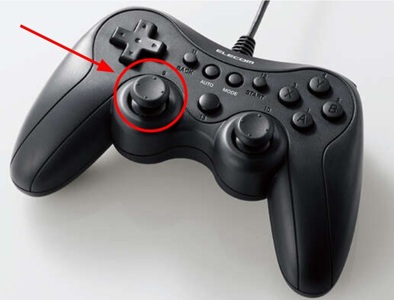
The analog signal of such a joystick may be [-1,1] in the case of a game console controller:
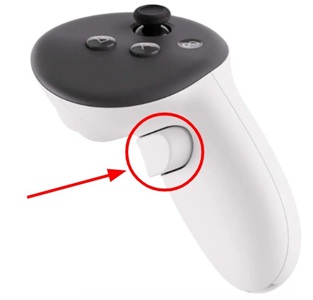
Or in the range [0,1] in the case of a VR controller trigger:
Note
The quality of joystick is important to take into account. You will not be able to control the gripper with precision if you don’t have a good control signal.
You have to also consider your ability to operate the joystick. Like for computer games, an experienced gamer will navigate with greater precision in the game than a beginner player.
2 functions designed to be called at high frequency for realtime control are available in the pyrobotiqgripper package.
realTimePositionMove function
realTimeSpeedMove function
Note
In case of a trigger joystick of a VR controller, a button could be used to reverse the signal so that the signal range goes from [0,1] to [-1,1]
1- Realtime control with position signal
Note
The above video is about the first prototype of the realTimePositionMove function. Function name changed to realTimePositionMove and the input is a [0,1] analog signal instead of a 0-255 position value.
Example of realtime control loop with realTimePositionMove function.
################
# Initialisation
################

# 1- Connect a Joystick with pygame for example

import pygame
pygame.joystick.init()
js = pygame.joystick.Joystick(0) #Select joystick with ID 0
js.init()

# 2- Connect the gripper

gripper = RobotiqGripper() #Default parameters in this case

# 3- Gripper initialisation

gripper.connect()
gripper.activate()
gripper.start()
gripper.calibrate_speed()
gripper.open()

###############################
# Gripper realtime control loop
###############################

while true:
    # Get joystick axis position
    pygame.event.pump()
    positionSignal = js.get_axis(0)

    # Feed the realTimePositionMove function with joystick signal
    gripper.realTimePositionMove(positionSignal)
The realTimePositionMove method is designed to be called in a loop with a high frequency. It will move the gripper to the requested position with a speed that depends on the distance to the target position. This allows for a smooth and responsive control of the gripper.
This function takes a position signal [0,1] as input and sends a position, speed and force command to the gripper. As it is difficult to manually maintain a fixed position of the gripper it may be difficult to control the gripper with precision with this method. It is easy to face a situation where the joystick oscillates around a position and generates gripper jerky motion.
2- Realtime control with speed and force signals
Example of realtime control loop with realTimeSpeedMove function.
################
# Initialisation
################

# 1- Connect a Joystick with pygame for example

import pygame
pygame.joystick.init()
js = pygame.joystick.Joystick(0) #Select joystick with ID 0
js.init()

# 2- Connect the gripper

gripper = RobotiqGripper() #Default parameters in this case

# 3- Gripper initialisation

gripper.connect()
gripper.activate()
gripper.start()
gripper.calibrate_speed()
gripper.open()

###############################
# Gripper realtime control loop
###############################

while true:
    # Get joystick axis position
    pygame.event.pump()
    speedSignal = js.get_axis(0)
    forceSignal = js.get_axis(1)

    # Feed the realTimeSpeedMove function with joystick signal
    gripper.realTimeSpeedMove(speedSignal,forceSignal)
This function takes a speed signal [-1,1] and a force signal [-1,1] as input and sends a position, speed and force command to the gripper.
This method allows greater control precision. The operator pushes the speed joystick out of the neutral position one way or another to move the gripper, and when the joystick is released the gripper stays in its current position. The force joystick gives the possibility to adjust the force applied by the gripper.
Joystick CLI Feature
The pyrobotiqgripper package includes a command-line interface CLI to experiment with the realtime functions.
A joystick or a mouse can be used to control the gripper.
This CLI requires the all dependencies to be installed.
uv add "pyrobotiqgripper[all]"
To use the Joystick CLI, run the following command:
pyrobotiqgripper-joystick
Note
By default the application will automatically detect the port on which the gripper is connected. It expects that the gripper is connected to the PC via USB and that a joystick is also connected to the PC.
You can check the help for details about available options:
pyrobotiqgripper-joystick --help
Here below is an example where the application is launched with mouse control. The gripper communication is done via Modbus RTU over TCP. The communication control loop uses speed control (i.e. implements realTimeSpeedMove)
pyrobotiqgripper-joystick --connection-type "RTU_VIA_TCP" --tcp-host 10.0.0.153 --tcp-port 2000 --joystick-id -1 --verbose 1 --control-method speed